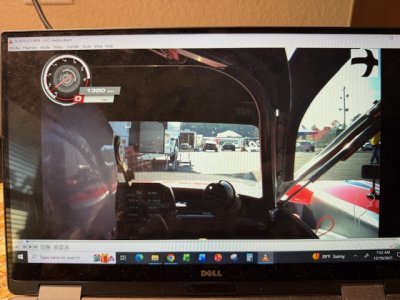
All of these settings are adjustable via the Race Studio 3 application from AIM. You likely need to do a lot of updates on your camera and in car dash as well to get the utility fully functional. There are a number of youtube videos that walk you through how to do it better than I can on this forum. However.... here is a primer..
I believe you have to have a PC for this - it is not Apple compatible
I have a AIM MXG 1.2 Dash and SmartyCam3 camera
All the manuals
can be downloaded here (click). They are will documented with lots of pictures.
Plug your car into a battery tender - it shouldn't be an issue but if the power dies mid update its a potential big issue
You need to download
RaceStudio 3 (Click Here)
After you install it:
Open Race Studio 3
Plug your cars USB port (on the right side in front of the door under a black screw on cover) into your computer
Turn on your master power in the car
Open the gear icon at the top of RS3
Under "Connected Devices" in the bottom left click on the AIM Dash that shows up
On the right side of the screen click the icon that says "Receive"
* This will download all the setting that are currently on the car to RS3 so you can make changes
Put the SD card from your Camera in your computer
It will show up Under "Connected Devices" as well
Click Receive on the right again to import the current settings to your computer
Update your devices:
In the right upper corner of RS3 is a blue cloud with a down arrow, click there and download the updates for the specific devices you have (your AIM dash and camera type)
Click on Resources in the top left and download the packages for each of the devices you have (specifically your dash and camera type)
DASH Update
Click on Firmware in the upper left
You can now click on your dash and update it to the newest version *(you have to have your car plugged into your computer for this)
*** DON"T turn off your car or interrupt this while it is updating.
Your Dash will turn on and off in the car and say something like "Updating Firmware"
CAMERA update
Take the SD card out of the camera and put it in the computer
It will show up under "Firmware" now too and you can download the updates to it
You then have to put the card into the camera
Turn the camera on and navigate the menu: Select Update --> Firmware --> Under FIRMUP select the new verison
You can now use Race Studio 3 to make adjustments to the configurations you just imported (They will show up under the gear icon in the "Devices" section.
You can disconnect your computer from the car and leave the SD card in the camera
Open the dash devices (probably MXR 1.3) as this is where you will make most changes
***Immediately click "Save As" in the top left and save this file as something unique to play with - keeping the original file to fall back on***
It looks super intimidating -> start with "Display" "Shift Lights and Alarms" and "Display" and "Parameters" Most of the other stuff wont need to be changed
You can change the look of your camera output and what is displayed by opening the camera from the devices menu
After clicking on the camera it will show up on the right side of the scree -> check the box -> click "Clone" at the top and save a new file so you can come back to the original without having changed it.
No you can play with those two new files a much as you want and it won't affect anything unless you send them to the car
Once you have it the way you want:
Reconnect the card and put the SD card into the computer
Click on "Devices", select the new file you have saved and click "Transmit" at the top right
Do this for both car and camera SD Card
On the car the dash will cycle on and off and apply any changes you made.
*** Keep the car on until it is done
Put the SD car back into the camera, turn it on and open the menu again
Go to Update --> Configuration
This will put your new visuals on the Screen
I hope this helped. Let me know if you have questions. If you would really like it done for you let me know and I can probably modify your files if your email them to me and then send them back for you to install.
Keep the Shiny Side Up!
Merry Christmas
Lance